Posts

Came out from Cave.. now doing Starlink Installation..

Image
For so long I never update my blog and kind of rusty already.. like an abandoned case full of bats and spider web 😂  I just want to share my thought after 2 site starlink installation .. A bit challenging at the first place..as you know.. need to climb rooftop for a nice clear blue skies..Felt really old enough for this kind of job.. but life must go on..  A nice and simple setup actually as you need some basic wifi setting as all hardware is just like plug and play.. As for my Starlink kits it consist of a Actuated Dish , Wifi Router , Ethernet adapter and cables.. The location as you can see is on top of a cabin.. a clear view of the skies is a must or else will be interrupted intermittently due to signal blockage by roof or below metal shade. the minimum speed I can get is around 250+- Mbps.. Just good enough for small office transaction and others googling stuff or maybe some movie. Below is some videos and picture for you guys to see..
Image
Malaysia Telco Tower ( Will be updated time after time )  1BestariNet Receiver Integrated System -1BRIS ( YES Tower ) Digi Tower  

Converting Aruba IAP ( IAP )to Campus AP ( CAP )

 1. You need to console the AP 2. Hit <Enter> to stop autoboot:  2 3. Purgeenv  ( to remove config and make a default config ) 4. factory_reset ( to reset all config and setting ) 5. reset   ( reboot AP ) 6. Wait until AP rebooted and User and Password appear 7. User : admin Password : AP Serial Number 8. If ask you change password please change to your desirable password 9. Type # convert-aos-ap CAP < Controller IP > 10.Converting to Controller based AP. Will automatically reboot when done 11.Make sure the AP got an IP from the Controller ( After reboot inside CLI ) 12.Check AP inside controller once 2 LED is static. #EOF p/s : Tested on IAP 325 Model.

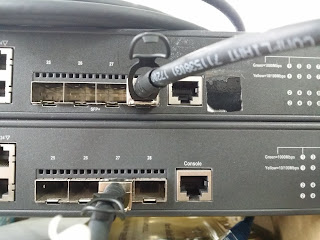
This is how I stacking my 2 switches with IRF using 1 DAC cable

Image
This is how I stacking my 2 switches with IRF using 1 cable   How to configure it? ==================== Switch 1 -------- # irf member 1 priority 32 # int  Ten-GigabitEthernet 1/0/27 shutdown # irf-port 1/1 port group interface Ten-GigabitEthernet 1/0/27 # int  Ten-GigabitEthernet 1/0/27 undo shutdown # irf-port-configuration active # quit # save # ============== Switch 2 --------- # irf member 1 renumber 2 # Save # Reboot *Switch UP  # irf member 2 priority 1 # # int  Ten-GigabitEthernet 2/0/28 shutdown # irf-port 1/1 port group interface Ten-GigabitEthernet 2/0/28 # int  Ten-GigabitEthernet 2/0/28 undo shutdown # irf-port-configuration active # quit # save # * Switch rebooted by itself and will follow configuration from Main Switch 1 Result/Output from 2 Switches ============================= #display  irf link Member 1  IRF Port  Interface                            ...

Configure Aruba AP-303H ( RW ) Unified AP

Image
Requirement :- 1.AP-CBL-SERU,JY728A Serial Cable ( Driver at this link https://support.arubanetworks.com/ToolsResources/tabid/76/DMXModule/514/EntryId/4229/Default.aspx ) 2.Putty ( Download at https://www.chiark.greenend.org.uk/~sgtatham/putty/latest.html ) How to configure ? First step :- Connect console cable and also Connected to POE injector Second :- Open Putty and follow this command as shown in the picture.This to empty / reset the configuration to factory default Third :- Configure like below command Hope this will help you.. -=EOT=-

How To install PL2303 Serial USB on OSX

Its been a long time never updating this blog.As for starter for this 2019 blogging.I show you how to install a PL2303 Serial Cable on Mac.  Installing the kext file can be done in a few easy steps: download and extract $ cd /path/to/osx-pl2303.kext $ sudo cp -R osx-pl2303.kext /System/Library/Extensions/  next you need to fix permissions and execute bits: $ cd /System/Library/Extensions  $ sudo chmod -R 755 osx-pl2303.kext  $ sudo chown -R root:wheel osx-pl2303.kext load the module and update kernel boot caches  $ cd /System/Library/Extensions  $ sudo kextload ./osx-pl2303.kext  $ sudo kextcache -system-cache  For deinstallation, perform these steps:  $ sudo rm -rf /System/Library/Extensions/osx-pl2303.kext  $ sudo kextcache -system-cache Driver Link: http://www.xbsd.nl/pub/osx-pl2303.kext.tgz    Credit to : xbsd.nl ( http://www.xbsd.nl/2011/07/pl2303-serial-usb-on-osx-lion.html )

How to connect YES 4G in Linux

1) Go to https://www.yes.my/v3/support/download.do#go 2) Select on which OS version e.g Connect for Linux (Ubuntu 12 & 14) 32 bit / 64 bit  3) Download it 4) Once downloaded,find the downloaded file and right click the filename Connect_Installer_32 and select Open with Ubuntu Software Center. 5) Click Install 6) And you got your 4G Yes dialer. p/s : It will ask your root password(Administrator password). And you done. --EOT--